
Contents
1 What are Shopify Snippets?
2 Why are snippets useful?
3 Can you overuse snippets?
4 How to add the snippet on Shopify?
4.1 Step 1: Edit the snippet code
4.2 Step 2: Create the snippet
4.3 Step 3: Include the snippet file
Have you ever opened up the HTML or CSS theme files in your Shopify store’s admin area? In Shopify’s admin, have you noticed some files with the title “Snippets”? Another thing that you would have seen on the way is that all they end with a “.liquid” extension.
If you have never worked with any of the server-side languages, then you would have questions like what are snippets? How are they useful? Why use snippets? How can you use it?
You might have more questions in your mind before reading this article. But by the time you reach the end of this article, you’ll be more excited to use the snippets throughout your Shopify store.
Why are snippets useful?
There are many reasons to prove the usefulness of snippets on Shopify. Some of them are:
- Snippets are a great way to keep repetitive codes in a single file.
- It enables us to update all the instances of a particular code from a single file.
- They allow us to focus on individual pieces of code, and we don’t need to deal with long files.
- It eases down working with Shopify’s sections.
Can you overuse snippets?
The answer to this query is both yes and no. As the code behind the snippets processes quickly and so, if you overuse the snippets, it will affect your page’s speed. Before making a snippet, ask yourself a few sets of questions, which includes:
- Will I use this code across different pages of the website? Or the other way could be to use the snippet code in one of the several locations.
- Do you want to share the snippet code with another site user?
- Is this code bursting out the major theme of the website?
- Will it make my code easier to read if it weren’t there?
- Do I want to edit the snippet code from an existing theme?
Have you answered yes to any of the above-mentioned questions? If this is so, then you don’t need to add a snippet in this case.
How to add the snippet on Shopify?
Step 1: Edit the snippet code
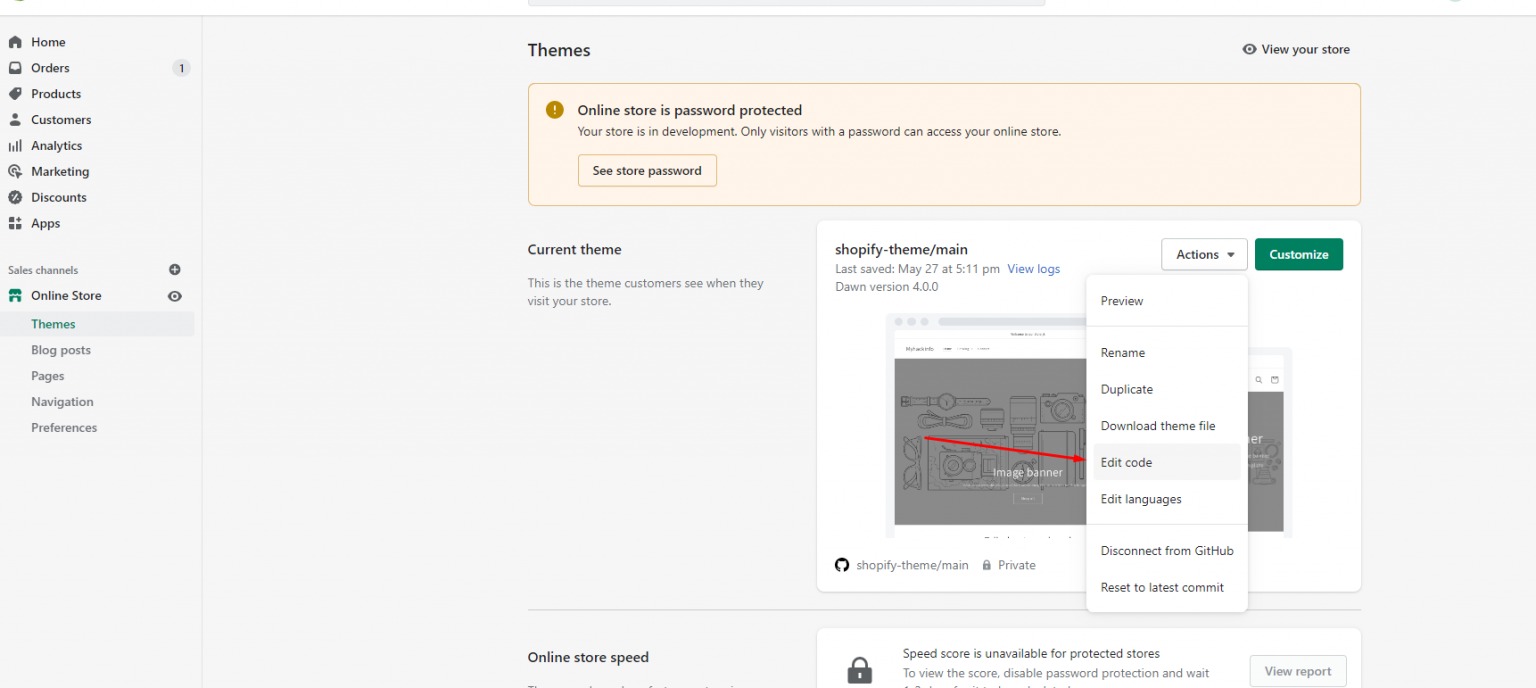
Go to the Shopify store’s Admin > Online Store > Themes > Actions > Edit code.
Step 2: Create the snippet
Scroll down to find ‘Snippets’. Next, you need to click on ‘Add a new Snippet’.
A pop-up menu will be displayed. You need to add a title to this snippet. For example, here
we added the snippet name as ‘article-card’. Click on ‘Create snippet’. Click on save.
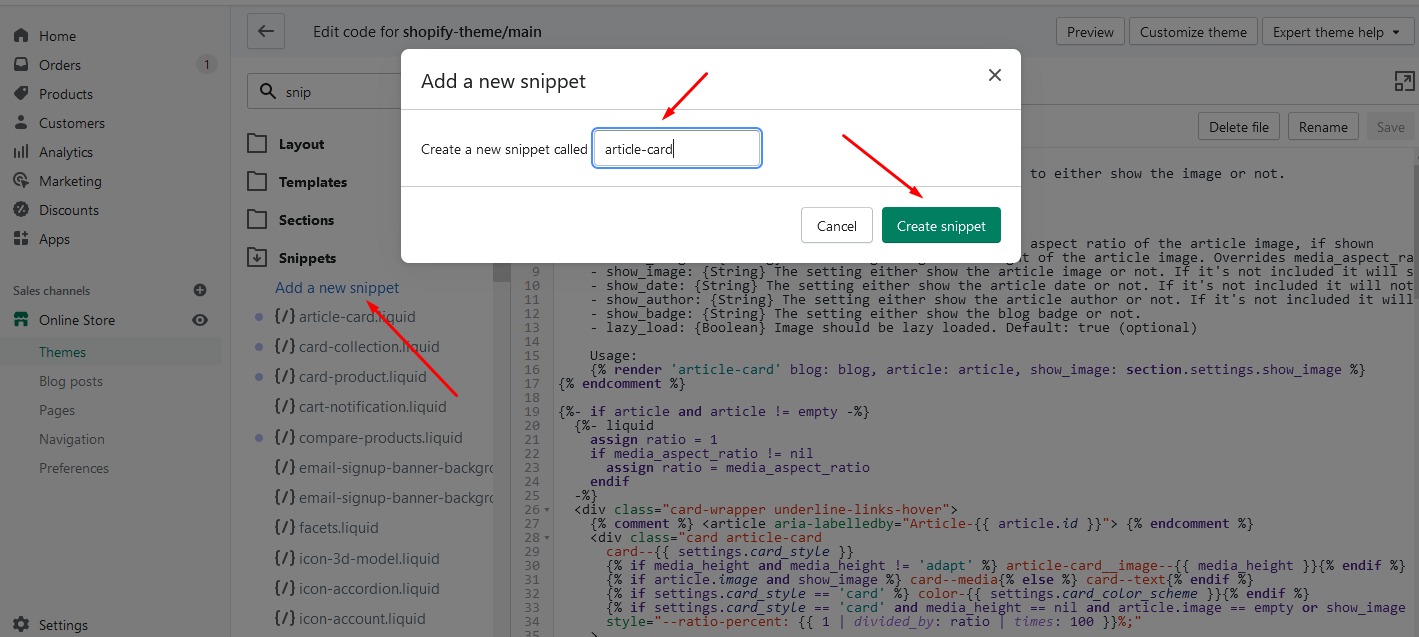
That’s it! This is how our snippet looks.
Step 3: Include the snippet file
The last and foremost step you need to do is to include the snippet using the liquid tag render, for example {%render ‘article-card’ %}
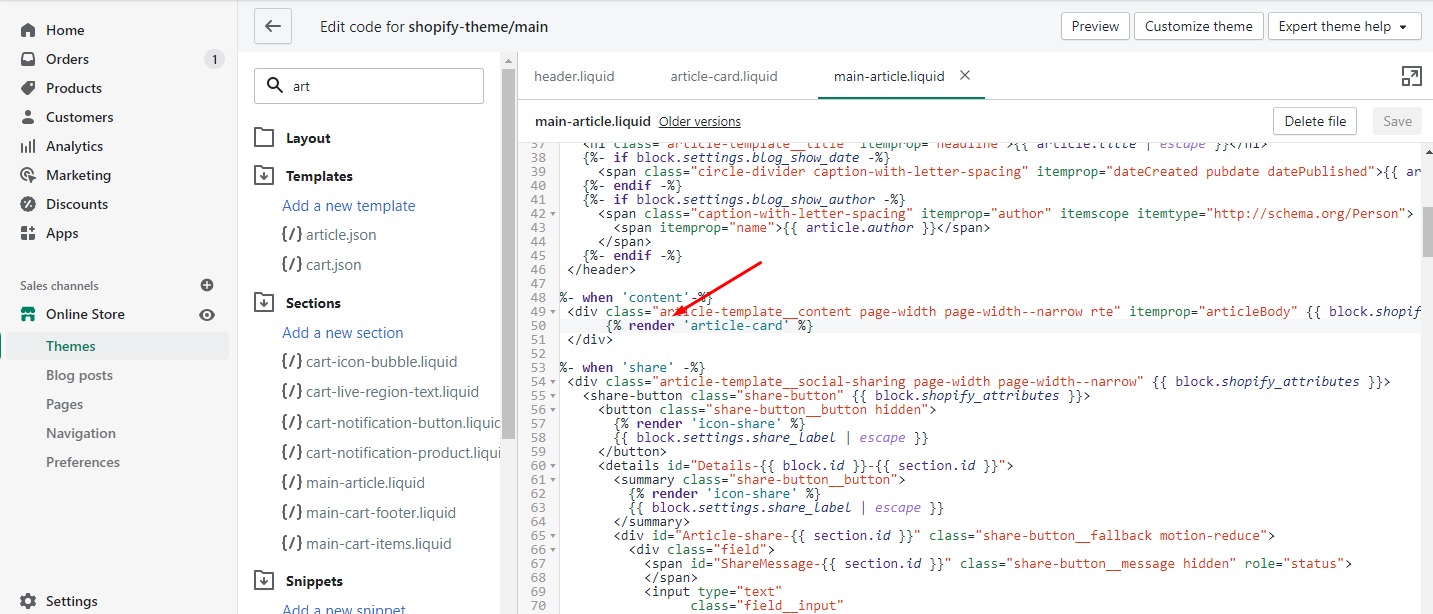
These were just the simple steps that you need to follow to add or create snippets in your Shopify store.
If you like this, you might also enjoy these post: