Deploy Shopify App on AWS Amplify is easy. We all know that AWS comes with powerful services and one of them is Amplify server-less container providing us with the ability to deploy Shopify apps using AWS Fargate without requiring a high level of control
Prerequisites :
- Install Amplify CLI by running :
npm install -g @aws-amplify/cli
- Configure Amplify CLI by following this guide
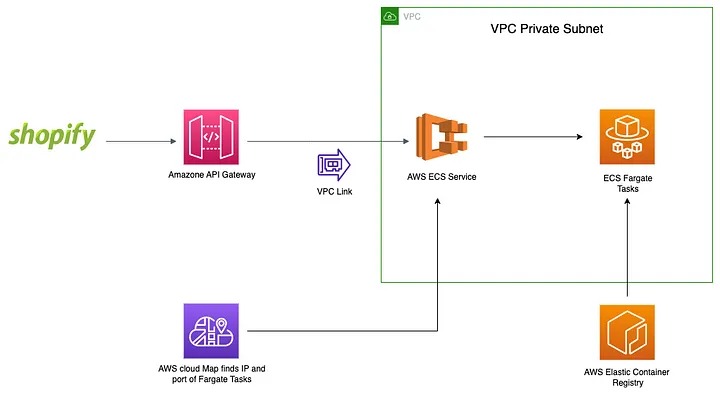
In order to deploy the Shopify app, Amplify the package “web” folder with Docker and push it into the S3 deployment bucket, This will trigger a code pipeline process in order to build the code’s app and stores the result in ECR, then deploy it to Fargate Task on an ECS Cluster fronted by an Amazon API Gateway HTTPS API using a direct cloud Map integration to a VPC Link
Setup a new Amplify project :
First of all, you need to Initialize an Amplify project by typing
amplify init
container-based deployment is not enabled by default, to activate that feature run the command below.
amplify configure project
and choose “Advanced: Container-based deployments”
After that you are going to add a custom Rest app template using API Gateway + Fargat with “amplify add api” command and choose the following options :
? Select from one of the below mentioned services: REST
? Which service would you like to use API Gateway + AWS Fargate (Container-based)
? Provide a friendly name for your resource to be used as a label for this category in the project: container18e646a8
? What image would you like to use Custom (bring your own Dockerfile or docker-compose.yml)
? When do you want to build & deploy the Fargate task On every "amplify push" (Fully managed container source)
? Do you want to restrict API access No
After successful completion, you will see a new folder called “API” added to your project with the following structure image
api
└── containera1179905
├── custom-policies.json
└── src
The “API” folder contained “src” folder that will hold your Shopify app files.
Your next step is moving “web” folder of the Shopify app inside “src” folder, Shopify app already comes with .Dockerfile so you need to copy and past it beside “src” folder then you need to add our ENV Variables, “.Dockerfile” will be like this
FROM node:18-alpine
ENV SCOPES=write_products
ENV SHOPIFY_API_KEY=Shopify_APP_API_Key
ENV SHOPIFY_API_SECRET=Shopify_APP_API_Secret
ENV BACKEND_PORT=8081
EXPOSE 8081
WORKDIR /app
COPY web .
RUN npm install
RUN cd frontend && npm install && npm run build
CMD ["npm", "run", "serve"]
Then Deploy your App using the following command.
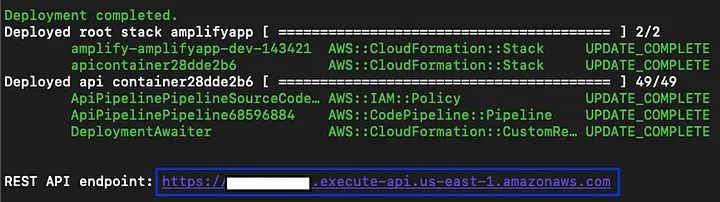
amplify push
after deployment runs successfully you will see an HTTPS Link returned in your console
FROM node:18-alpine
ENV HOST=https://yourapiendpoint.execute-api.us-east-1.amazonaws.com
ENV SCOPES=write_products
ENV SHOPIFY_API_KEY=Shopify_APP_API_Key
ENV SHOPIFY_API_SECRET=Shopify_APP_API_Secret
ENV BACKEND_PORT=8081
EXPOSE 8081
WORKDIR /app
COPY web .
RUN npm install
RUN cd frontend && npm install && npm run build
CMD ["npm", "run", "serve"]
amplify push
Finally, implement the URL returned by Amplify and set it as Shopify app URLs
If you enjoyed this, you might also enjoy these post