The Dawn theme, Shopify’s now new upcoming theme, is the current gold standard for 2.0 theme customization. But being so, it’s kind of bare. Especially the product page. In this blog, we will teach you how Add Color Swatches on Shopify Dawn Theme AND pattern swatches for product variants.
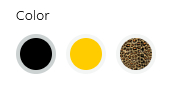
WeeklyHow has an awesome guide on how to create the color swatch, but let’s take it to the next level with better styling as well as the ability to add pictures within the selection to show patterns, the end result is shown below. Note, the color swatch code WeeklyHow uses slightly differs to the this guide, so the suggestion is to follow the our guide.
Change Main-Product.Liquid
Go to edit code, head over to the Section folder and find main-product.liquid. Once found, scroll down until you find the below code
<label for="{{ section.id }}-{{ option.position }}-{{ forloop.index0 }}">
  {{ value }}
</label>
replace the above, with the below code
{% assign variant_needed = null %}
{% for variant in product.variants %}
{% if variant.options contains value %}
{% assign variant_needed = variant %}
{% endif %}
{% endfor %}
{% if variant_needed.metafields.color.swatch and option.name == "Color" %}
<label class="color-swatch" for="{{ section.id }}-{{ option.position }}-{{ forloop.index0 }}" data-option="{{ value }}" style="background-color: {{variant_needed.metafields.color.swatch}}">
 
</label>
{% elsif variant_needed.metafields.image.swatch and option.name == "Color" %}
<label class="color-swatch" for="{{ section.id }}-{{ option.position }}-{{ forloop.index0 }}" data-option="{{ value }}" style="background-size: cover; background-image: url('{{variant_needed.metafields.image.swatch}}')">
 
</label>
{% else %}
<label for="{{ section.id }}-{{ option.position }}-{{ forloop.index0 }}">
{{ value }}
</label>
{% endif %}Add Code To Base.css
Now, head over to the Asset folder, find base.css and paste the below code at the bottom of the file
.product-form__input input[type="radio"] + .color-swatch {
  border: 3px solid #f4f5ff; /* Change this hex code to change the color of the non-active/non-selected variant */
  width: 40px;
  height: 40px;
  padding: 0;
}

.product-form__input input[type="radio"]:checked + .color-swatch,
.product-form__input input[type="radio"]:hover + .color-swatch {
  border: 3px solid #ccd1d1; /* Change this hex code to change the color of the active/selected variant */
}

.product-form__input input[type="radio"] + .swatch {
  border: 3px solid #f4f5ff; /* Change this hex code to change the color of the non-active/non-selected variant */
  width: 40px;
  height: 40px;
  padding: 0;
  color: #000;
  display: inline-flex;
  justify-content: center;
  align-items: center;
}


.product-form__input input[type="radio"]:checked + .swatch,
.product-form__input input[type="radio"]:hover + .swatch {
  border: 3px solid #ccd1d1; /* Change this hex code to change the color of the active/selected variant */
  background: none;
}
Create The Metafields
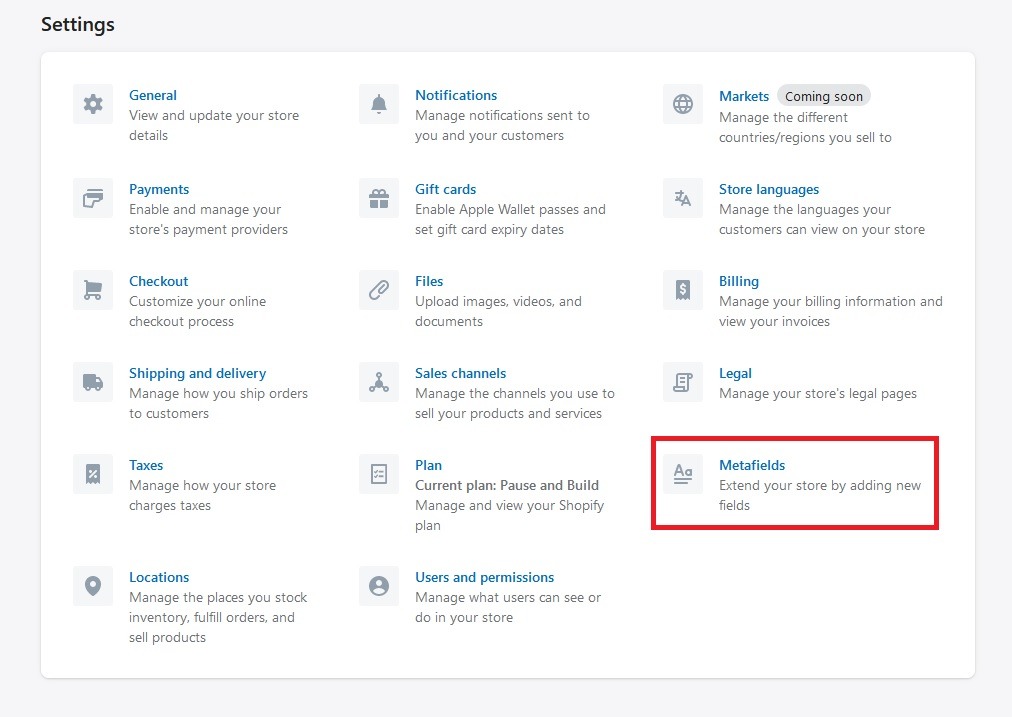
You’re done with the coding. Now it’s time to create the metafields in order for you to assign colors/patterns to the variants. Head over to Shopify CMS platform. Click on Settings then Metafields
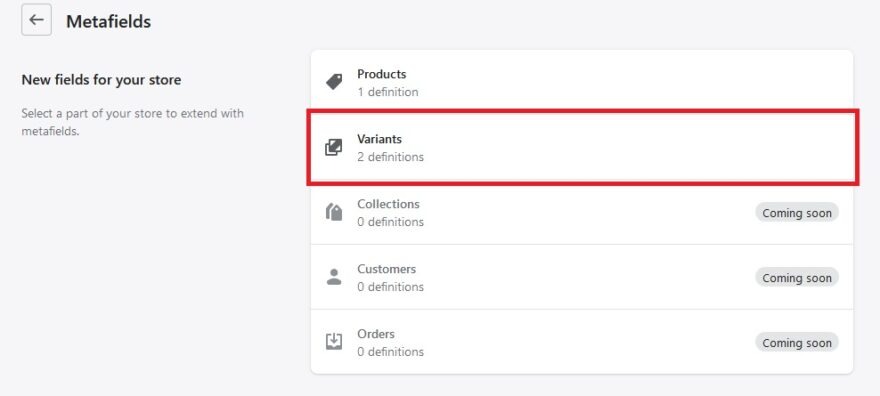
You’ll need to create 2 metafields, one for color another for image. Once you click Metafields, click Variant
Once inside the Variant setting, click the green button ‘Add Definition‘. First we will add the color swatch, name it Color, then for the namespace and key, put color.swatch, lastly select the type as Color. Then click save
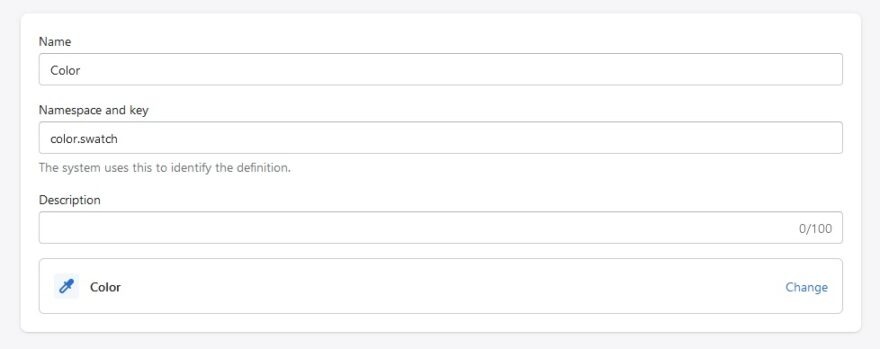
Now click ‘Add Definition‘ again, this time we will create the image metafield, name it Image, then for the namespace and key, put image.swatch, lastly select the type as URL. Then click save
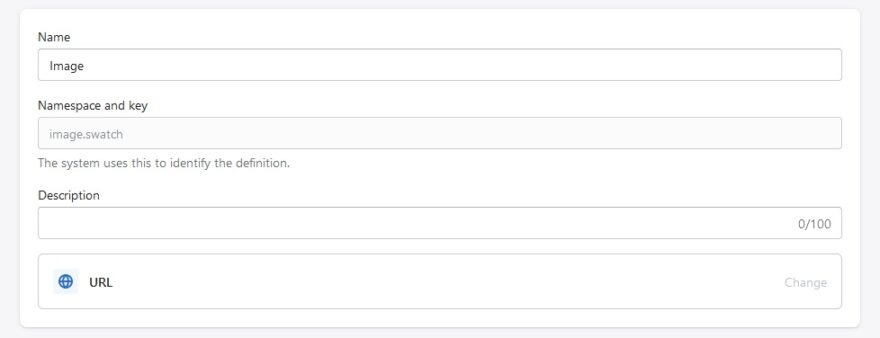
You should now have 2 variant metafields, and with that you are done!
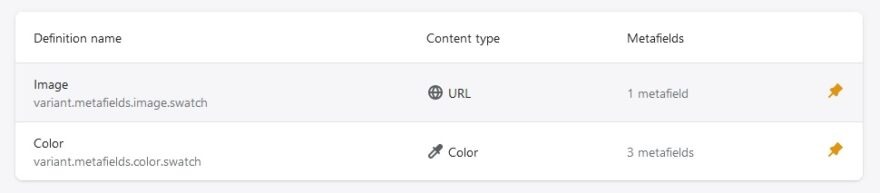
Finally, lets now add the variant. Go to any product, ensure that the product variant name is called Color, and save the product.
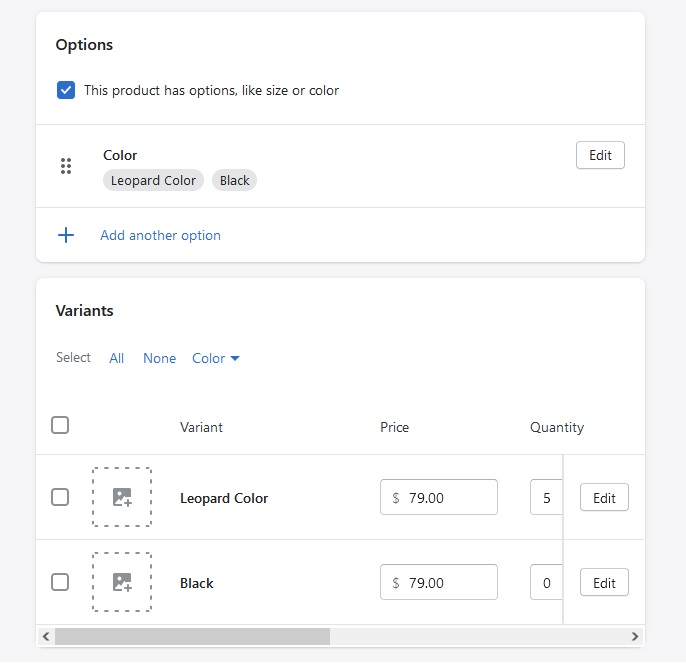
After saving, click edit on one of the variants you want to add a color/pattern to. Scroll to the bottom, you will now have 2 options for metafields.
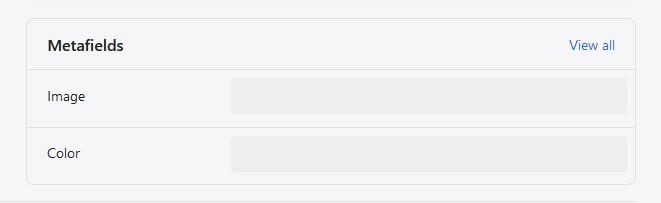
You can now select which you would like to put, for Image metafield you will need to put the url of the image. Best action to do is to upload the pattern, ideally 1:1 ratio, in your shopify file settings, then copying the link to the Image metafield. For the Color metafield, simply click the field and choose the color you like.
If you have both metafields selected, it will choose the Color metafield as the primary selector.
You’re now done! you now have an awesome product variant color swatch on your Dawn theme.
If you enjoyed this, you might also enjoy these post